Beau Crabill, Amazon seller coach, sent us a video review of AMZ Analyzer. Check it out!
Hope you like it and please share!
AMZ Analyzer is a Amazon profit analyzer software which includes bulk FBA profit calculator, MFN profit calculator, Amazon fulfillment calculator, Amazon shipping calculator and much more. We are always undergoing new improvements to ensure the platform stays the premier bulk Amazon profit calculator for all of your product research and Amazon wholesale list needs.
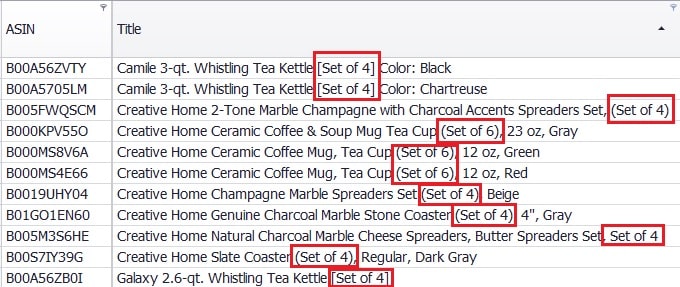
Have you ever come across a listing that was selling multiple units of a product in the same listing as a pack? That’s a multi-pack! It is very common on Amazon for sellers to take a product and create a new listing for it as a multi-pack in order to stand out from the main listing. Here are some examples of multi-pack listing results:
The Problem
In order to analyze your Profit/ROI for a multi-pack listing, you have to assume a higher Purchase Price in order to see an accurate profit/ROI. For example, if Purchase Price for a product from your supplier is $5 per unit, the product needs to be analyzed at a $20 Purchase Price for a 4-pack multi-pack listing. If this adjustment is not made, the profit/ROI will look astronomically high (incorrectly)!
The Solution
stage.analyzer.tools pulls the Package Quantity meta data from every listing which tells the program how many “packs” a listing is selling. By enabling the “Number of Packs * Cost” feature in the Results tab, the program will multiply Number of Packs * Purchase Price for each multi-pack listing to correct the Purchase Price and account for the higher cost of goods. This will deliver an accurate profit/ROI result for multi-pack listings*!
Limitations & Workaround
While this solution will address most multi-packs correctly, it is not a perfect solution and unfortunately no perfect solution currently exists. The program relies on Amazon.com to have correct meta data for the Package Quantity field. If the Amazon listing has bad data, which happens more often than we like, the program will not recognize the listing as a multi-pack. This is unfortunately a limitation of Amazon that has no perfect solution at this time. One way around this is to edit the Package Quantity field in the program when you notice there is a discrepancy with a multi-pack’s Package Quantity field. Ie: If Package Quantity is displayed incorrectly as “1” but it’s actually a 3-pack, you can click on the Package Quantity cell in the program and type “3” to replace the “1” value. It will then auto-recalculate profit/ROI on the fly to assume purchase of 3 products necessary to sell on that multi-pack listing.
Gridviews and filters are some of the most unique and powerful features of the program. Mastering these features will save many research hours and will help you become an efficient Amazon selling machine! The video below demonstrates how this is done:
Updating Filter Bar options will result in LIVE changes to the results and can be adjusted on the fly!
Understanding Filter Bar Options 3
Gridviews: Gridviews are predefined column views that allow you to save your column choices, column order and filter options as a saved “Gridview”. This feature is very powerful and can save a lot of time.
Show Reviews & Amazon Data: After processing results, filter them to a short list of potentially profitable products. Once a shortlist is developed, select some or all of the products rows and click this button to reveal data in the “Is Sold By Amazon”, “Num Reviews” & “Ratings” columns.
Refresh: Allows refresh of Amazon fee and seller data on selected products or entire list. This is helpful when loading previously processed results that need to be refreshed for most current data. You can see the last run date and time in the LastRun column.
Fulfillment by Amazon & Fulfillment by Merchant: Choose the method of fulfillment you wish to analyze and stage.analyzer.tools will update Amazon fees, profit & ROI accordingly.
Inbound Shipping (Per lb): Select your assumed cost for Inbound Shipping per lb. Inbound Shipping is your out of pocket non-reimbursed shipping cost to receive product from supplier and deliver to customer and/or FBA warehouse . The program will automatically calculate shipping costs based on the $ entered which is multiplied by the Package Weight provided by the Amazon.com product listing. ie: If the Inbound Shipping per lb. is set to $1.00 and the Package Weight of a product is 3.00 lb., the program will calculate $3.00 for Inbound Shipping. Inbound Shipping is automatically calculated as a cost against your Profit and ROI results.
Prep Fee Per Item: Costs associated with prep (packaging cost, etc.) can be accounted for by using this field. The prep costs are treated as an expense and will impact the Profit/ROI calculations accordingly.
Tax % On Sourcing: If paying taxes on sourced goods, tax % can be accounted for by using this field. The taxes are treated as an expense and will impact the Profit/ROI calculations accordingly.
VAT: Apply Value Added Tax (VAT) to your analysis if you are in a VAT region.
Calculate Multi-Packs: Enabling this checkbox will multiply the Package Quantity * Purchase Price in order to properly account for increased purchase cost of selling a multi-pack product. Read more about Multi-Packs here.
Folder Action Button: Click this button to:
a) Save: Save your on-screen results to a *.AMZ file which can be reloaded into stage.analyzer.tools. Will not include products and columns that have been filtered out or removed,
b) Load: Load a previously saved *.AMZ file into stage.analyzer.tools Results tab,
c) Export to Excel: Export your on-screen results to an Excel spreadsheet. The export will not include products and columns that have been filtered out or removed.